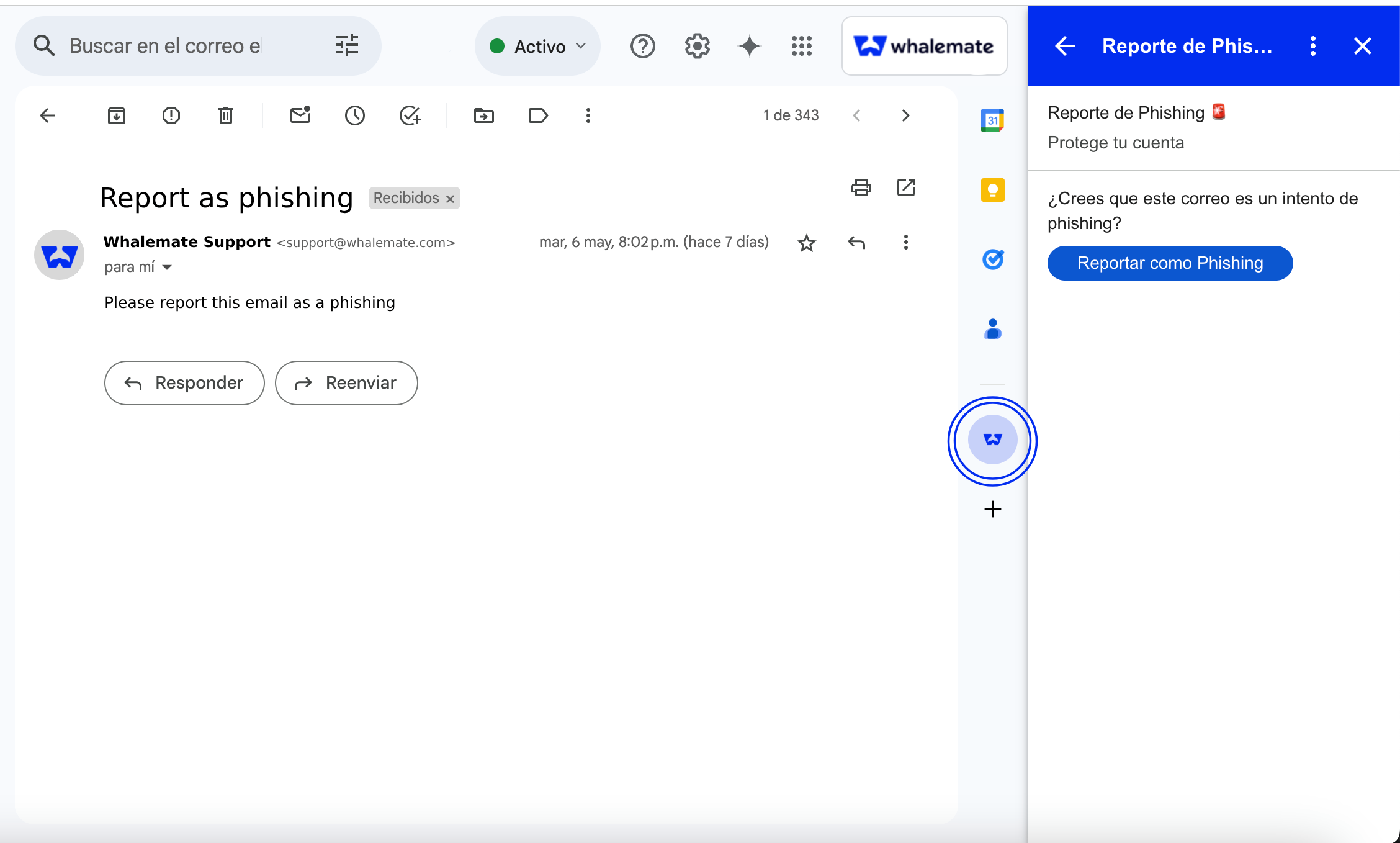
Google Phishing Report
The phishing report button allows users in your organization to identify and report suspicious emails securely and efficiently. Designed to integrate seamlessly into the everyday work environment, this button allows users to actively contribute to the company's cybersecurity with just one click.
What permissions are required and why?
When you install and sign in to the application, you will be asked to grant certain permissions. Below is a list of the requested permissions and their purposes:
- Run as a Gmail add-on: This allows the button to appear and function within the Gmail interface, enabling seamless integration with your inbox.
- View email message metadata when the add-on is running: This includes information such as subject, sender, and timestamp. It is used to help identify and analyze potentially malicious emails.
- Read email messages when the add-on is running: This permission is necessary to access the content of the selected message so it can be included in the phishing report.
- Connect to an external service: This allows the add-on to send the reported email data to Whalemate for analysis.
- View your primary Google Account email address: This is used to identify the user who reported the email, which helps in tracking reports.
- View your personal information, including information you have shared publicly: This helps personalize the user experience and validate the identity of the user within the organization.
How to install it?
To install the phishing report button in Gmail for your entire organization follow these steps
➤ Admin Center
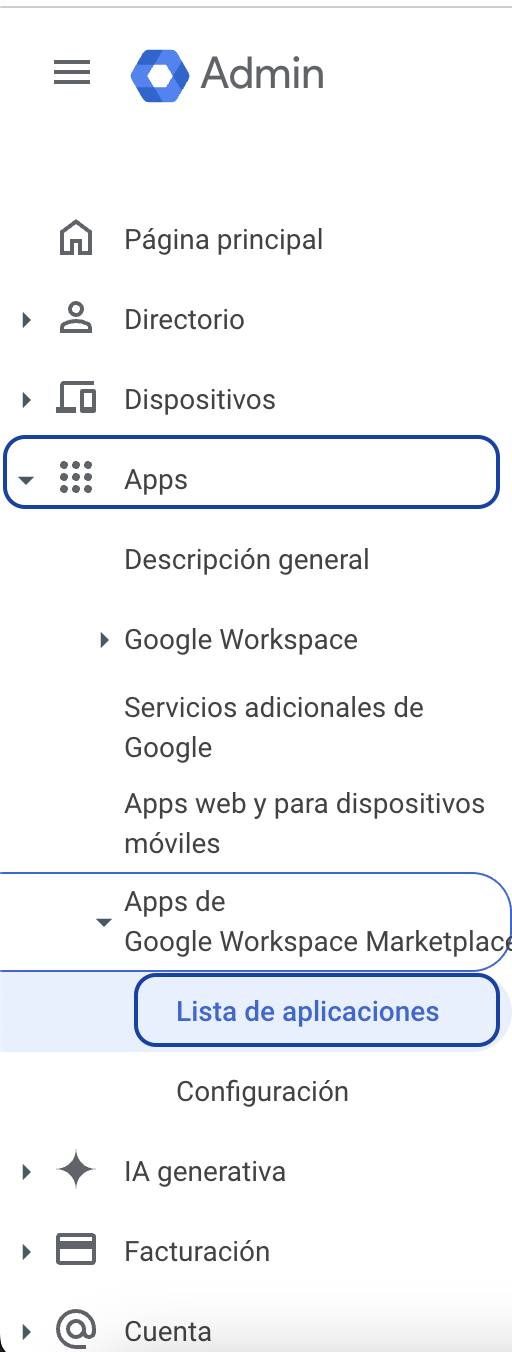
Log in to your Admin Center account and look in the left sidebar for the Apps > Google Workspace Marketplace Apps > Apps List tab.
➤ Install the app
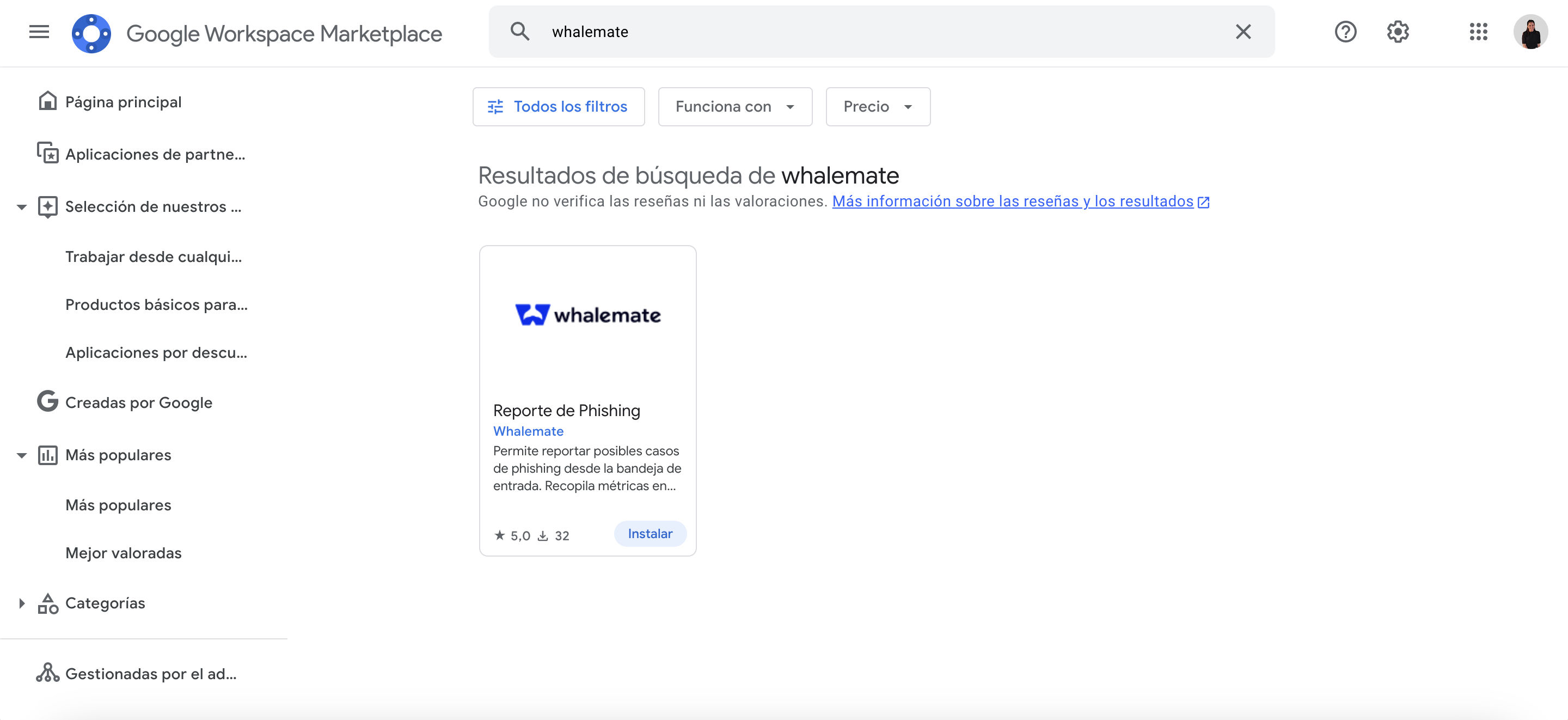
Click on Install the App. You will be redirected to the Google Workspace Marketplace, where you must enter “Whalemate” in the search engine.

Once you find it, follow the steps to install it for your entire organization.
➤ Find the button
The app will be reflected in 24 to 48 business hours in all users of your organization. You can find it in the right sidebar, when you open an email.