Microsoft Phishing Report
The phishing report button allows users in your organization to identify and report suspicious emails securely and efficiently. Designed to integrate seamlessly into the everyday work environment, this button allows users to actively contribute to the company's cybersecurity with just one click.
Prerequisite configuration in Whalemate
Before installing the Microsoft Phishing Report button, you must first configure Microsoft access within the Whalemate platform. This step is required to allow Whalemate to securely interact with Microsoft services using Microsoft Graph.
Follow these steps:
-
Log in to the Whalemate platform.
-
Navigate to General > Integrations > Microsoft Graph Access.
-
Click the Grant Access button.
-
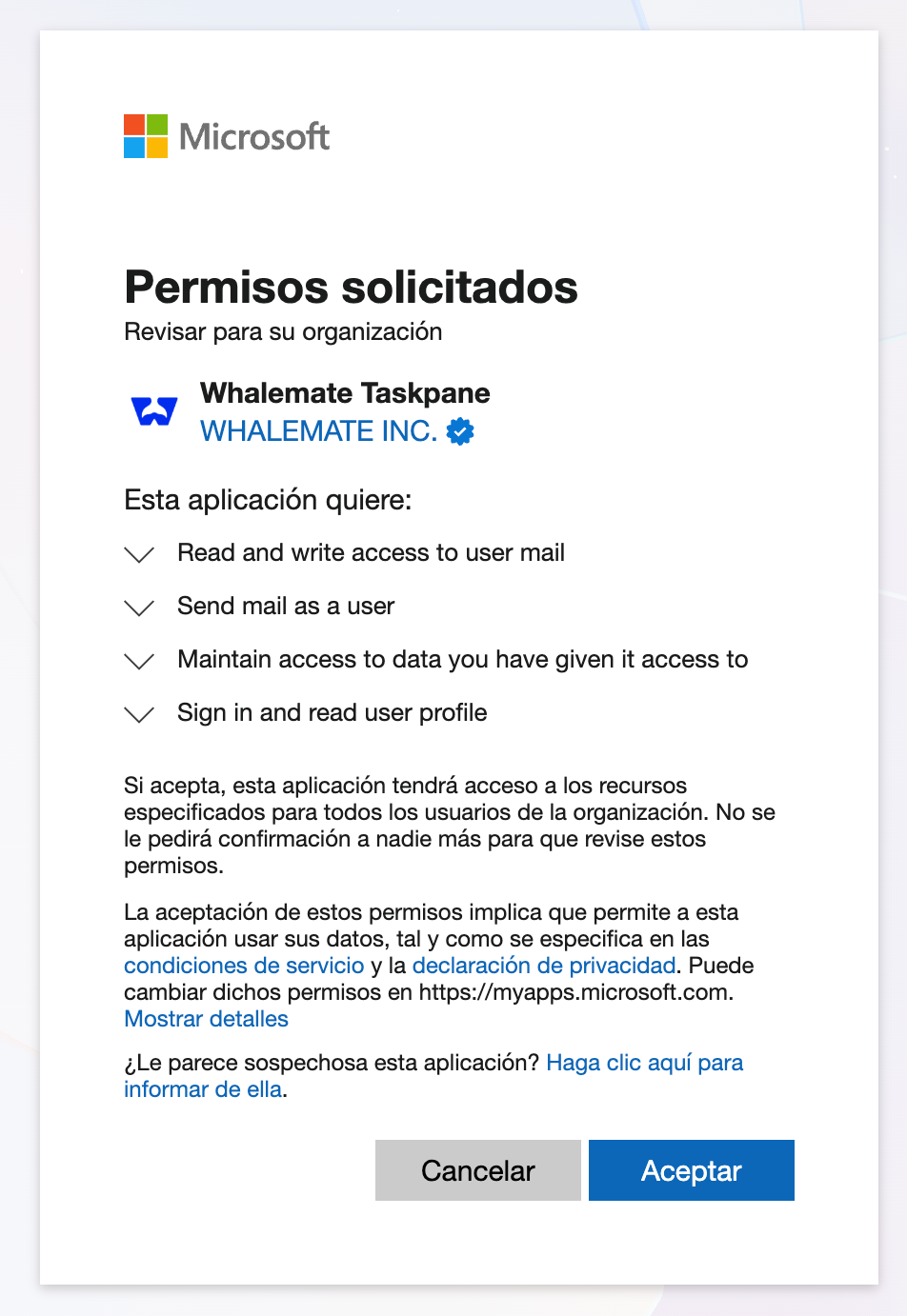
You will be redirected to a Microsoft permission consent screen. Review and accept the requested permissions to authorize Whalemate.
-
Once access has been granted successfully, you can proceed with installing the phishing report button for your organization.
What permissions are required and why?
When you install and sign in to the application, you will be asked to grant certain permissions. Below is a list of the requested permissions and their purposes:
- Sign you in and read your profile: This permission allows the application to authenticate you and retrieve basic information about your user account, such as your name and email address. It is used to associate reported messages with the correct user in your organization.
- Read and write access to your mail: This is necessary so the application can access the content of the reported email and optionally move it to a different folder (such as Junk or Deleted Items) after it has been reported.
- Maintain access to data you have given it access to: This allows the application to retain access to the granted permissions without requiring you to sign in every time. It ensures smooth operation and uninterrupted reporting capabilities.
- Send mail as a user: This permission allows the application to send emails on behalf of the user. It is used exclusively to forward reported messages to the email address configured under General > General > Incident Reporting Email, and only when this option is explicitly enabled. This ensures that reported emails can be delivered to the designated incident response mailbox without requiring any manual action from the user.
How to install it?
To install the phishing report button in Microsoft for your entire organization follow these steps
➤ Admin Center
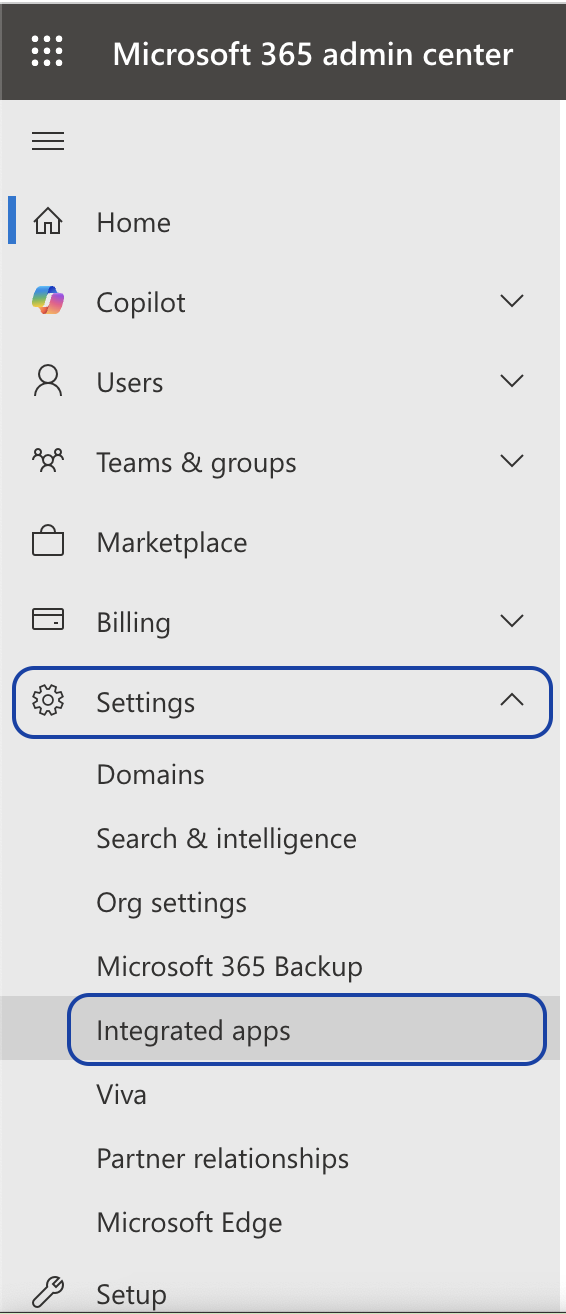
Log in to your Admin Center account and look in the left sidebar for the Settings > Integrated Applications tab.
➤ Upload the app
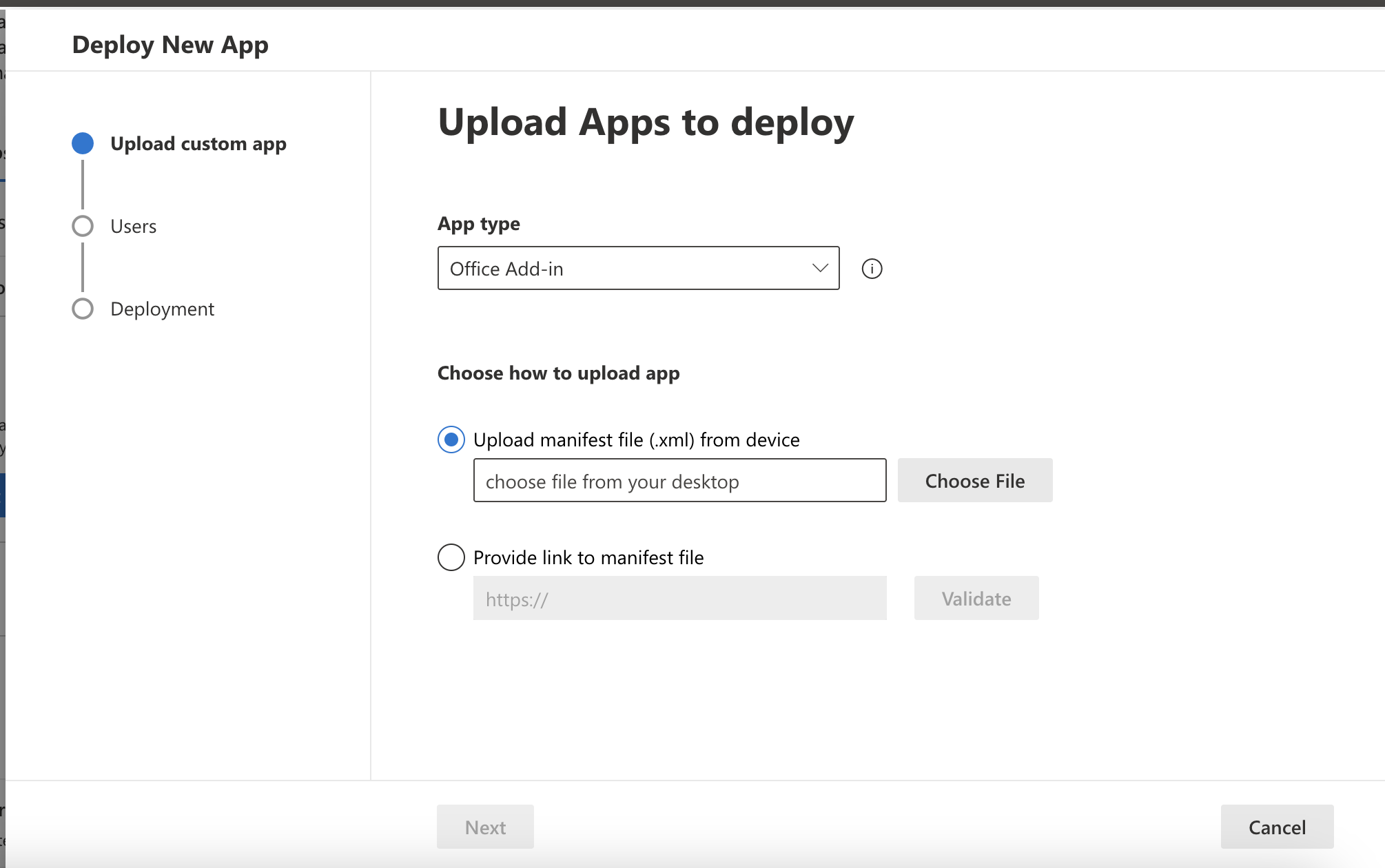
Download this XML file, click on Upload custom apps and follow the instructions to install the application as an Office Add-in.

➤ Find the button
The app will be reflected in 24 to 72 business hours in all users of your organization. You can find it in the top sidebar, when you open an email.
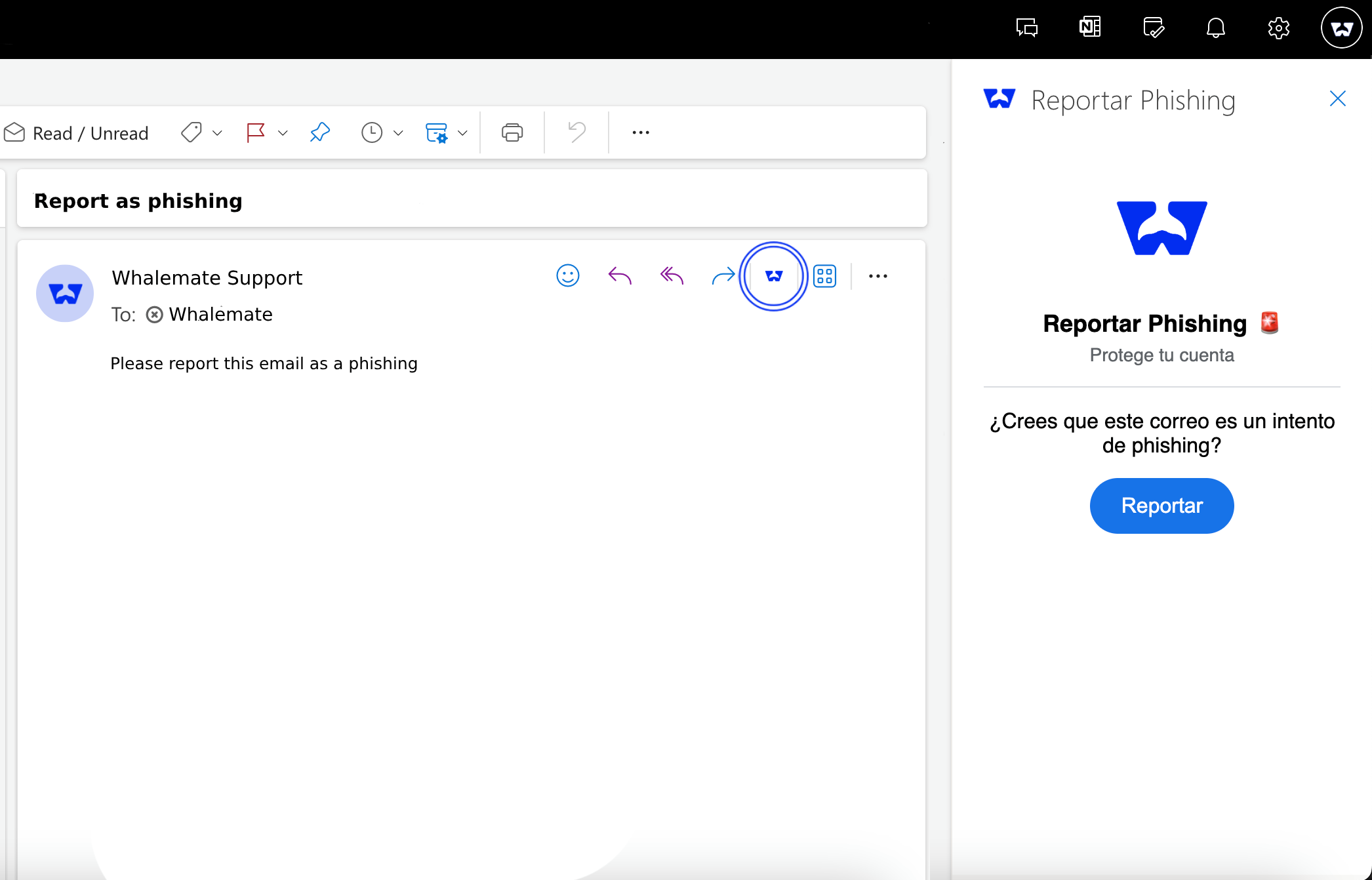
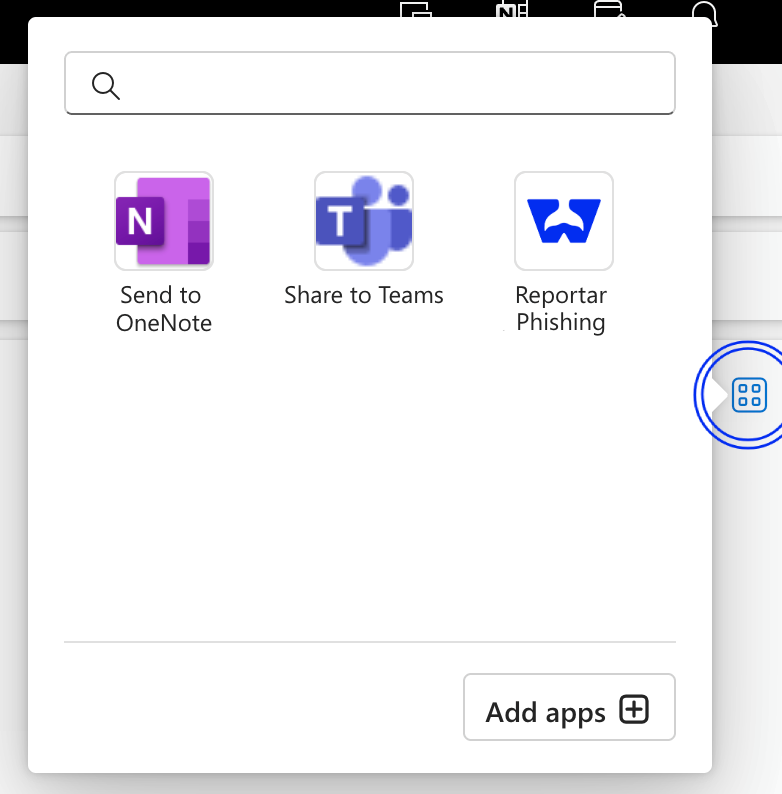
If you do not see the shortcut, you can find it by clicking on the Apps button in the same bar.